



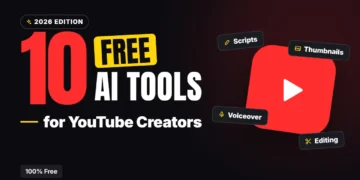









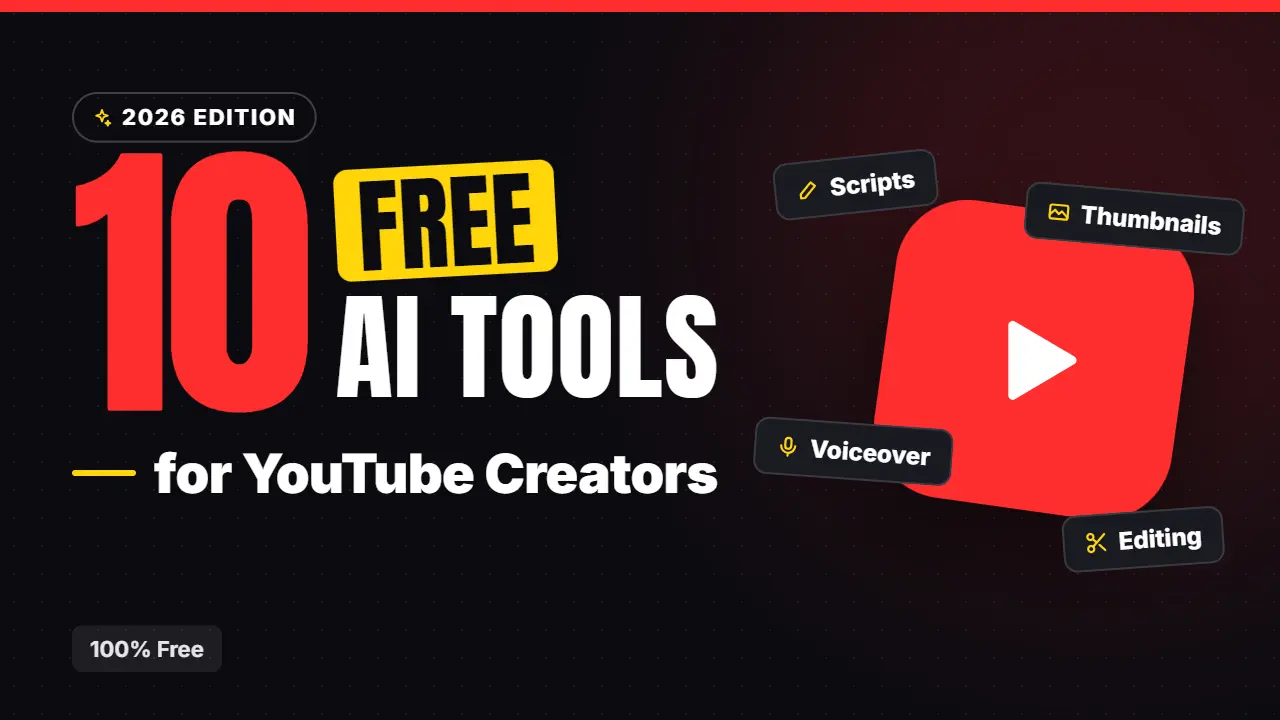
10 Free AI Tools for YouTube Creators: Scripts, Thumbnails, and Captions
Starting a YouTube channel used to mean paying for editing software, stock music, a thumbnail designer, and a transcription service before you had a single subscriber. In 2026, you can cover most of that with free AI tools. The trade-off is that free plans come with limits, and YouTube has clear rules about how AI can be used if you want to earn money.
This guide covers ten free tools, what their free plans include as of October 2026, and where they stop. It also summarizes YouTube’s official guidance on disclosure and on “inauthentic” content, because the rules matter as much as the tools.
Free plans change often, and several vendor pages do not show a date. Confirm the limits in each app before you build a workflow on it.
YouTube’s Rules First
Before you pick tools, understand two rules from YouTube’s own help pages.
Disclose realistic AI-altered content. According to YouTube, you must disclose realistic content that is generated or meaningfully altered with AI. Examples include making a real person appear to say or do something they did not, altering footage of a real event or place, or creating a realistic scene that did not happen. In YouTube Studio, you set the “AI use” option during upload.
You do not need to disclose non-realistic AI content or minor edits. YouTube lists examples that need no disclosure: beauty and color filters, background blur, captions, upscaling or audio repair, idea generation, script help, thumbnail and title help, cloning your own voice for voiceovers, and gameplay footage. Disclosure alone does not limit a video’s audience or monetization eligibility, but repeated failure to disclose can bring penalties, including removal of content or suspension from the YouTube Partner Program.
Avoid “inauthentic” content. YouTube’s monetization page says its former “repetitious content” policy was renamed “inauthentic content” in July 2025. AI-generated content is ineligible for monetization when it relies on generic or unoriginal templates and gives the impression of mass production without the creator’s own insight. AI tools are acceptable when they support your own creative work, such as editing scripts or visualizing a character and storyline you invented. Reusing a template, such as the same intro and outro, is fine if the bulk of each video differs.
In short: use AI to help you make something original, not to mass-produce near-identical videos.
How We Picked These Tools
We looked for tools with a real free plan, and we read the vendor’s own page where it loaded. Where a page did not clearly state a limit, we say so. We left out tools whose pricing pages did not load, such as vidIQ.
Script and Research Tools
1. ChatGPT
ChatGPT is a flexible scripting partner. Give it your topic, audience, and video length, and ask for a hook, an outline, and a first draft. The free plan has usage limits, and the Plus plan costs $20 a month if you outgrow it.
Best for: hooks, outlines, titles, and first drafts you then rewrite in your own voice.
Watch out for: a raw AI script tends to sound generic, which feeds the “mass-produced” look YouTube warns about. Add your own opinions, stories, and examples.
2. Gemini
Gemini is a good second opinion and works well for brainstorming video angles and comparing title options. It has a free tier, and paid plans cost around $20 a month, so confirm the current price. YouTube lists script and idea generation as uses that need no AI disclosure.
Best for: brainstorming topics and testing alternative titles.
Watch out for: facts and statistics can be wrong. Check every number before you say it on camera.
3. Claude
Claude is useful for tightening a draft, checking structure, and turning rambling notes into a clear outline. It has a free plan with usage limits, and you should check current limits in the app.
Best for: editing and restructuring your own writing.
Watch out for: as with any assistant, review its claims. Use it as an editor, not as the author of your video.
4. Google NotebookLM
NotebookLM answers questions using only the documents you upload, so it is helpful for research-heavy videos. Per Google’s help page, the free Standard plan allows 100 notebooks per user and 50 sources per notebook, and limits are subject to change.
Best for: explainer and documentary-style channels that rely on articles, papers, or transcripts.
Watch out for: it only knows what you give it, so choose reliable sources and cite them in your video description.
Thumbnail and Design Tools
5. Canva
Canva is the easiest way to build a thumbnail. Start from a template, add your photo, and use AI tools to remove backgrounds or generate elements. Canva’s pricing page says the free plan is capped at up to 20 Standard or Premium AI uses. Canva Pro is listed at $144 a year for one person, and the page did not confirm which features each plan includes, so check before you pay.
Best for: clean, readable thumbnails with big text and a clear subject.
Watch out for: AI uses are limited on the free plan, so save them for the final thumbnail. If your thumbnail shows a realistic scene that did not happen, consider whether it falls under YouTube’s disclosure guidance for realistic altered content.
6. TubeBuddy (Free Tools)
TubeBuddy is a channel-optimization toolkit. The pricing page lists a Revenue Calculator, Thumbnail Preview, mobile app, and Chrome extension as free tools, but does not state their limits. Paid plan prices were not visible on the page I read, so verify them on TubeBuddy’s site.
Best for: previewing how a thumbnail looks next to other videos before you publish.
Watch out for: the page does not clearly label which tools use AI, so treat the free tools as helpers, not as proof of what will perform.
Editing, Voice, and Captions
[IMAGE 2 — A video timeline with captions overlaid on a vertical clip. Suggested search: “video editing timeline captions screen” on Pexels. Alt text: “Free AI tools for editing and captioning YouTube videos”]
7. CapCut
CapCut is a popular editor for both long videos and Shorts. Its pricing page lists free templates and basic editing tools on the free plan. Pro costs $19.99 a month, with 1,200 monthly AI credits and 1 TB of storage. The page does not say whether auto captions are free, what the export limits are, or whether exports carry a watermark, so test your actual workflow on the free version.
Best for: short-form edits and quick templates.
Watch out for: the pricing page notes that final prices and offers need a sign-in, and some figures look promotional, so check the app.
8. Descript
Descript lets you edit video by editing the transcript. The free plan includes 60 media minutes a month, 100 one-time AI credits, and 720p exports with a watermark. Paid plans start at about $16 a month on the lower listed price, though the page does not label which price is annual.
Best for: podcasts, interviews, and talking-head videos where cutting text is faster than cutting a timeline.
Watch out for: the watermark and 60-minute cap make the free plan best for testing, not for a full publishing schedule.
9. ElevenLabs
ElevenLabs creates realistic AI voiceovers, which helps faceless channels and creators who dislike recording audio. The free plan includes 10,000 credits a month, which appears to correspond to about 10 minutes of text to speech, though the page table was hard to read. The Starter plan, at $6 a month on monthly billing, is described as adding a commercial license, which suggests the free plan does not include one.
Best for: narrating scripts without a microphone.
Watch out for: commercial use on the free plan is not stated, so do not monetize videos with free-plan voiceovers until you confirm the license. YouTube also expects a non-generic, original video even when the voice is synthetic.
10. YouTube Studio Auto-Captions
YouTube creates automatic captions for about 70 languages on long-form videos and Shorts, according to its help page. The page does not state a cost, but the feature is built into YouTube Studio. Captions may not be ready right after upload, and they can fail if the audio is poor, the video is too long, there is a long silence at the start, or several speakers overlap.
YouTube warns that automatic captions come from machine learning and can misrepresent speech because of accents, dialects, or noise. Its advice: always review and edit them. In Studio, choose Subtitles, select the video, and use More next to the captions to edit.
Best for: making every video accessible at no extra cost.
Watch out for: unedited captions can embarrass you with wrong words. Review at least the first minute and any technical terms.
Comparison at a Glance
| Tool | Job | Free plan highlights | Main limit |
|---|---|---|---|
| ChatGPT | Scripts, titles | Free with usage limits | Generic tone |
| Gemini | Ideas, titles | Free tier | Fact errors |
| Claude | Editing, outlines | Free plan with limits | Check current limits |
| NotebookLM | Research | 100 notebooks, 50 sources each | Only your sources |
| Canva | Thumbnails | Up to 20 AI uses | AI use cap |
| TubeBuddy | Thumbnail preview | Free tools listed | Limits not stated |
| CapCut | Editing | Free templates, basic tools | Captions and export unclear |
| Descript | Transcript editing | 60 minutes, 720p, watermark | Watermark, minutes |
| ElevenLabs | Voiceovers | 10,000 credits | No commercial license stated |
| YouTube auto-captions | Captions | Built into Studio | Needs review |
A Free Workflow You Can Copy
- Research: Upload your sources to NotebookLM and ask for key points and open questions.
- Outline: Use ChatGPT, Gemini, or Claude for a hook and a structure, then rewrite it in your own words.
- Record or narrate: Record yourself, or use a licensed AI voice if your plan allows commercial use.
- Edit: Cut in Descript or CapCut.
- Thumbnail: Build two options in Canva and compare them with TubeBuddy’s preview.
- Captions: Let YouTube generate them, then correct the errors.
- Disclose: In Studio, set the AI use option if your video contains realistic altered or synthetic content.
Common Mistakes to Avoid
Posting raw AI scripts. The result sounds like every other channel and risks the “mass-produced” label.
Forgetting disclosure. If your video has realistic AI-generated or altered scenes, set the AI use option.
Using a free voice license for monetized videos. Check commercial rights first.
Trusting AI facts. Verify statistics, dates, and quotes.
Publishing unedited captions. Review them, especially names and technical terms.
Making the same video twenty times. Series are fine, but each video needs a distinct idea.
Frequently Asked Questions
Do I have to label AI-assisted scripts? YouTube’s guidance says idea generation and script help need no disclosure. Realistic AI-generated or altered visuals and audio do.
Can I monetize videos made with AI tools? Yes, if the content is original and shows your creative input. YouTube says AI is acceptable when it supports your own work, and that mass-produced, templated content is not eligible.
Are YouTube auto-captions free? They are built into YouTube Studio, but the help page I read did not state a price. Check Studio for your channel.
What is the best free thumbnail tool? Canva is the easiest to start with. Its free plan limits AI uses, so use them sparingly.
Can I use a free AI voice on a monetized channel? Only if the plan allows commercial use. ElevenLabs’ page suggests its paid Starter plan adds a commercial license, so verify before you publish.
The Bottom Line
A free toolkit can take you from idea to published video: NotebookLM for research, an AI assistant for outlines, Canva for thumbnails, Descript or CapCut for editing, and YouTube’s own captions. Use AI to speed up the work, keep the creative decisions yours, and follow YouTube’s disclosure rules so your channel stays eligible to earn.
For related reading, see our guides to AI insights and analytics for creators, free AI tools to make money online, and the best AI video generators.