





























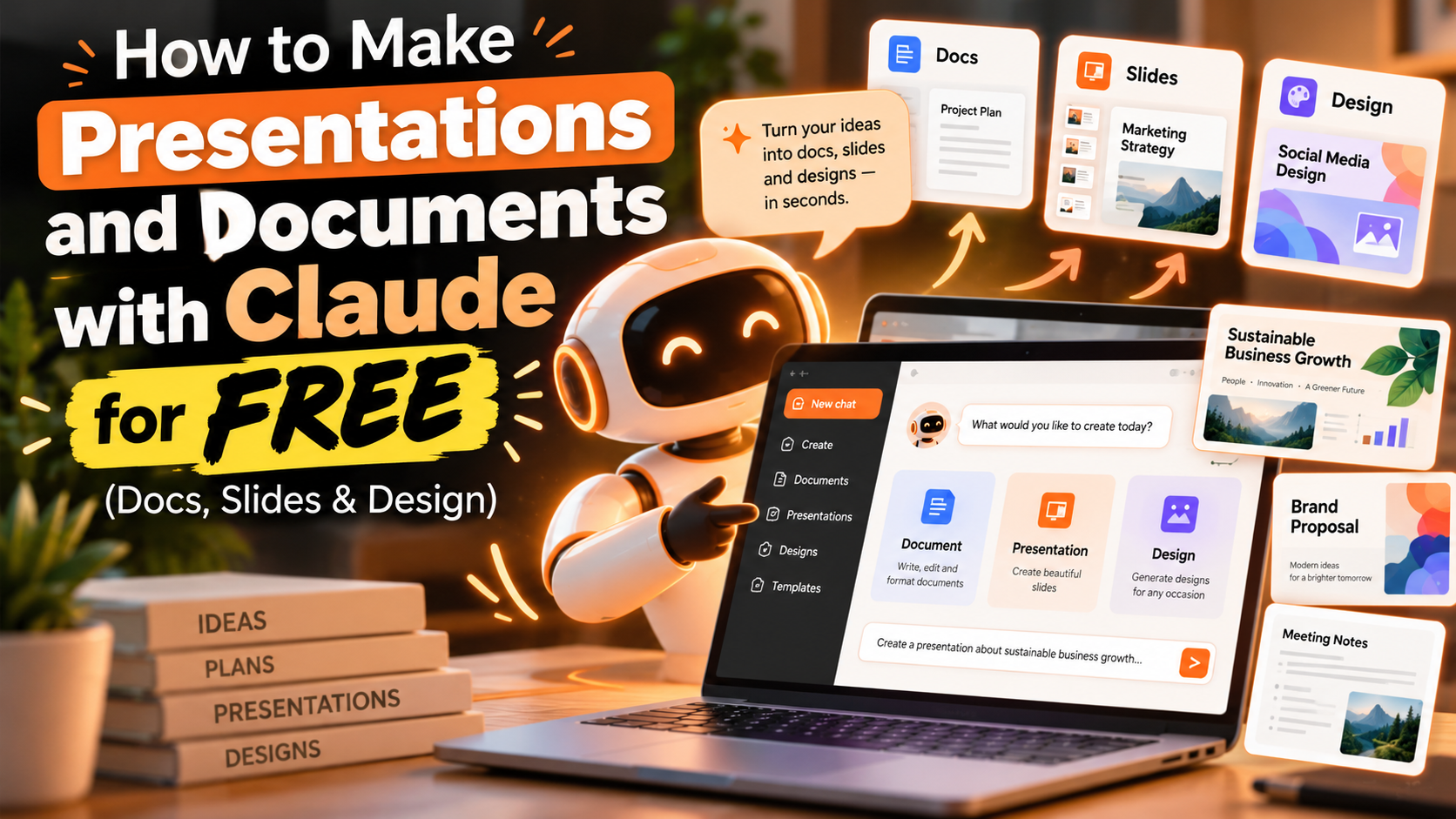
How to Make Presentations and Documents with Claude for Free (Docs, Slides & Design)
A year ago, getting an AI to hand you a finished presentation meant copying text into PowerPoint and fixing the layout yourself. In October 2026, you can ask Claude for a deck, a report, or a one-page design inside a normal conversation, edit the result in place, and download it, all on the free plan.
That’s new. According to a Claude Radar report, Docs, Slides, and Design moved out of beta and onto every plan on October 8. This guide walks through each one step by step, shows the prompts that work, explains the free-plan limits, and covers what to do when you run out of usage.
What’s Actually Free Now (and Why Some Guides Disagree)
Before you follow any tutorial, know that the internet is full of conflicting information on this. Guides written in September say Claude Slides is a paid beta feature, and they were correct at the time. Claude Slides launched on September 16, 2026, and a recent explainer reports it left beta on October 8 and is now available on every plan, Free included. Claude Design has a longer history: it arrived in beta on April 17 and, per Coursiv’s breakdown, now also works inside regular conversations.
What this means for you:
- Docs, Slides, and Design are available on Free, Pro, Max, Team, and Enterprise, with Enterprise switching them on by default from October 15.
- Everything shares one usage pool. A 10-slide deck built from a few uploaded files can use up a free session quickly, because the free allowance is the smallest of any plan.
- Dashboards and Motion are separate, newer features that remain in beta on paid plans only, so skip them if you’re on Free.
If a feature doesn’t appear in your account, it may be rolling out gradually. Check Claude’s pricing page for current plan details.
Part 1: Making a Document with Claude Docs
Claude Docs lets you write a document inside the conversation, then keep editing it directly, instead of regenerating the whole thing each time.
Step 1: Start with a clear brief. Open claude.ai and describe the document, who it’s for, the tone, and the length. A vague request produces a vague document.
Step 2: Add source material. Upload notes, an outline, or a PDF if you have one. Claude builds from what you give it, so real material beats a generic prompt.
Step 3: Edit in place. Instead of asking for a full rewrite, select a paragraph and ask for a specific change, such as “make this more formal” or “cut this by half.” This saves usage, which matters on Free.
Step 4: Export or share. Documents download as Word files or export to Google Docs, and they can be shared by link. They’re private by default, and Coursiv notes that co-authors and Claude itself can leave comments.
Prompt template:
“Write a two-page proposal for [audience] about [topic]. Use a professional but friendly tone. Include a short summary, three main sections, and a clear next step. Ask me any questions you need before you start.”
Letting Claude ask clarifying questions first is one of the most effective habits you can build, because it prevents wasted drafts.
Part 2: Making a Presentation with Claude Slides
Claude Slides builds a deck from a conversation and lets you present directly from Claude, share it by link, or download it.
Step 1: Describe the deck. Say who the audience is, how many slides you want, and what must be included. A prompt that names the goal gets a better result than “make a deck about marketing.”
Step 2: Review the draft slide by slide. Note what works and what doesn’t. Treat the first version as a working draft, as Syracuse University’s IT guide suggests, and ask Claude to shorten a slide, reorder sections, rewrite a headline, or adjust the layout.
Step 3: Refine with targeted requests. Ask for changes to one slide at a time rather than regenerating the deck.
Step 4: Export. You can download the deck as a PowerPoint (.pptx) or PDF, and some guides report an editable Google Slides option too. Since reports differ, check the export menu in your own account.
Prompt template:
“Create a 8-slide presentation for [audience] on [topic]. Slide 1 is a title, slide 8 is a call to action. Keep each slide to a headline and three short bullets. Before you build it, ask me what you need to know.”
Tip: if you already wrote a report in the same conversation, ask for a deck based on it. Slides can reuse that content rather than starting from scratch.
Part 3: Making Visual Designs with Claude Design
Claude Design is for visual work: one-pagers, mockups, prototypes, and slide-style layouts on an editable canvas. You can use it inside a conversation or on the standalone claude.ai/design site.
Important date: the standalone Claude Design site is scheduled to close on December 14, as the feature folds into the main Claude app. Don’t build a long-term workflow around that separate address.
The official Claude Academy tutorial lists the export options: standalone HTML (best for interactivity), PowerPoint, PDF, a ZIP of the project, sending to Canva, and handing off to Claude Code. You can also upload a Word document, PDF, or notes file as source material, so Claude pulls content from it as it builds.
Prompt template:
“Design a one-page flyer for [event]. Use a clean modern style, a bold headline, a short description, and a section for date and location. Offer two color options.”
The Fallback: File Creation (Works Even When You’re Out of Limits)
If Slides or Docs isn’t available in your account, or you want a standard file, use Claude’s file creation. Anthropic’s support article on creating and editing files explains that Claude can produce real .pptx, .docx, .xlsx, and PDF files you can download or save to Google Drive, and the Oria guide notes that this works on every plan, Free included, with files up to 30 MB.
Ask explicitly: “Create a downloadable PowerPoint (.pptx) with these slides.” If Claude returns an outline instead of a file, repeat the request and mention the file format. Keep in mind that file creation uses more of your usage limit than a normal chat.
Quick Comparison: Which Tool for Which Job
| Tool | Best for | Main exports | Free plan? |
|---|---|---|---|
| Claude Docs | Reports, proposals, long writing | Word, Google Docs, share link | Yes, since Oct 8 |
| Claude Slides | Presentations | PowerPoint, PDF (Google Slides reported) | Yes, since Oct 8 |
| Claude Design | Flyers, mockups, one-pagers | PPTX, PDF, HTML, ZIP, Canva | Yes, standalone site closes Dec 14 |
| File creation | Standard .pptx/.docx/.xlsx/PDF files | Downloadable files, Google Drive | Yes, uses more usage |
Three Real-World Ways to Use This
A student preparing a class presentation. Upload your notes, ask Claude for an outline first, approve it, then generate the deck. Export it as a PDF to submit or as a PowerPoint to keep editing. For exam revision, our guide to AI tools that help you prepare for exams faster shows how to pair this with flashcards and practice quizzes.
A freelancer sending a proposal. Ask Claude Docs for a two-page proposal, edit the pricing section by hand, then export to Word and send it. A short, clean proposal makes a stronger first impression than a long, generic one.
A small-business owner making a flyer. Use Claude Design for a one-page flyer, export it as a PDF for printing, or send it to Canva if you want to adjust fonts and colors there.
Where Your Files Can Go After Export
The files Claude creates are standard formats, so they work with the tools you already use. A deck exported as .pptx opens in Microsoft PowerPoint, and Google Drive users can open or import the same file in Google Slides. Documents exported as Word files open in Word, and they can also be brought into Google Docs. If you want to keep up with changes to these features, Anthropic posts product updates on its news page.
How to Stretch the Free Plan
Because free usage is the smallest allowance, plan carefully:
- Gather your content first. Fewer uploads and shorter prompts mean fewer tokens spent.
- Request a short outline before the full deck. Approving an outline costs less than regenerating twenty slides.
- Make edits slide by slide. Targeted changes use less than full rewrites.
- Work in separate sessions. If you hit a limit, finish the next part after it resets.
- Use a companion tool for the finishing touches. Claude can write the content while Canva or Gamma handles visual polish, though those tools have their own free limits.
Our guide to free AI tools that can help you earn money covers those limits in detail.
Common Mistakes to Avoid
- Skipping the review. AI-written slides and documents can contain wrong facts or awkward phrasing. Read everything before sharing.
- Not checking the exported file. Export once and open it in PowerPoint or Word to see what survived, especially before relying on it for something you’ll edit later.
- Asking for too much in one request. Large, vague prompts burn usage and give weaker results.
- Pasting confidential material. Review the data policy for your plan before uploading anything sensitive.
- Following outdated tutorials. Many older guides say Slides is paid-only. Check your account.
Frequently Asked Questions
Is Claude Slides really free? Yes, since October 8, 2026, on every plan including Free. The catch is that each deck counts against a small usage allowance.
Can I download a Claude presentation as PowerPoint? Yes. Slides can be downloaded as a .pptx or PDF, and Claude’s file creation can also generate a standard PowerPoint file on any plan.
Do I need to pay for Claude for PowerPoint? The Claude add-in inside PowerPoint is listed for paid plans. On the free plan, ask Claude in chat for a downloadable .pptx instead.
What happens to Claude Design on December 14? The standalone Claude Design site is scheduled to close as the feature folds into the main app. Designs inside conversations continue.
Is Claude better than Canva or Gamma for presentations? They do different jobs. Claude is strong at writing and structuring content, while Canva and Gamma specialize in visual templates and polish. Many people draft in Claude and finish elsewhere.
The Bottom Line
The practical change here is simple: you can now go from a rough idea to a downloadable document, deck, or design without paying, as long as you respect the small free allowance. Start with a clear brief, let Claude ask questions, edit in small steps, export once to check the result, and treat the first version as a draft. For students, there’s an extra benefit — see our list of free AI tools for students for more ways to use it. And since this area is changing fast, recheck Claude’s plans before building a routine around any single feature.