










How to Use Canva’s New AI Image Generator
Canva has released its first image generation model, called Canva Craft, and made it available to all Canva users through a tool called Dream Lab. Until now, Canva’s image generation leaned on partner models. This one was built in-house, and Canva says it was built specifically for design: posters, social posts, presentations, and anything with text in it.
This guide shows you how to find it, how to use it step by step, how to write prompts that work, and what limits and rules apply. I used Canva’s own announcement, help pages, and terms where they loaded, and I mark where Canva’s pages leave gaps. I did not test the model myself, so judge image quality on your own prompts.
What Canva Craft Is
According to Canva’s announcement, Craft is its first image generation model, built and trained in-house by Canva Research. TechCrunch reported the launch on October 22, 2026. Canva’s page lists these features:
- Text in images. Canva says Craft is strong at text rendering and typography, with text support in 55 languages.
- Layout. It aims to handle layout, hierarchy, and spacing, in photorealistic and illustrative styles such as flat, vector, painterly, and hand-drawn.
- Any language for prompts. You can write your prompt in any language.
- Targeted edits. Canva says you can change individual elements without altering the rest of the image.
- Output size. Images go up to 2K resolution, in more than 30 aspect ratios or a custom ratio.
- Editable results. Canva says outputs are editable, and that Magic Layers can convert generated images into editable design elements.
- Two-stage design. A planning model writes a composition plan, and a rendering model turns it into the image.
Canva also says the model was trained on millions of human-made Canva templates and refined with feedback from professional designers. These are Canva’s own statements. Independent outlets that covered the launch, including TechCrunch and TestingCatalog, relayed them without testing the model.
Canva’s ranking claim
Canva says Craft debuted fourth overall on DesignArena, a crowdsourced design-AI ranking, first for People & Portraits and Landscapes & Nature, second for Abstract & Patterns, and fourth for Products. That is Canva’s description of a leaderboard result. Rankings shift as votes come in and new models arrive, so treat it as a starting point, not proof that Craft will beat other tools on your kind of work.
Where to Find It
Canva says Craft is available to all Canva users worldwide through Dream Lab. The sources describe the location slightly differently, so look in both places:
- Canva’s help page says to go to the Canva homepage, select More, then Dream Lab, and notes that Dream Lab is accessed from the homepage, not inside the editor.
- Canva’s announcement mentions Dream Lab in the bottom-left panel.
Interfaces are rolled out in waves, so what you see may differ. The help page itself says some options may vary by rollout. Canva’s help page does not say which model Dream Lab uses by default, so check the model name shown in the tool.
Step-by-Step: Create an Image in Dream Lab
Canva’s Dream Lab help page gives the steps. Here they are with tips.
- Open Dream Lab. From the homepage, choose More, then Dream Lab.
- Write a prompt. Be specific about subject, style, colors, lighting, and layout. Canva’s tip is to describe the subject and composition directly.
- Optionally add a reference image. It guides the look, feel, or composition, and Canva says it uses your AI allowance. Choose how Canva should use it from the reference options dropdown.
- Click Generate. Dream Lab creates four image options for each prompt.
- Pick the one you like.
- Refine it. Describe a follow-up edit such as “make the car blue” to get an updated version, or choose Edit image for specific changes.
- Boost the resolution if needed. This makes the image clearer and more detailed, and uses your AI allowance.
- Find old images later. Open Dream Lab and select History.
The classic generator page
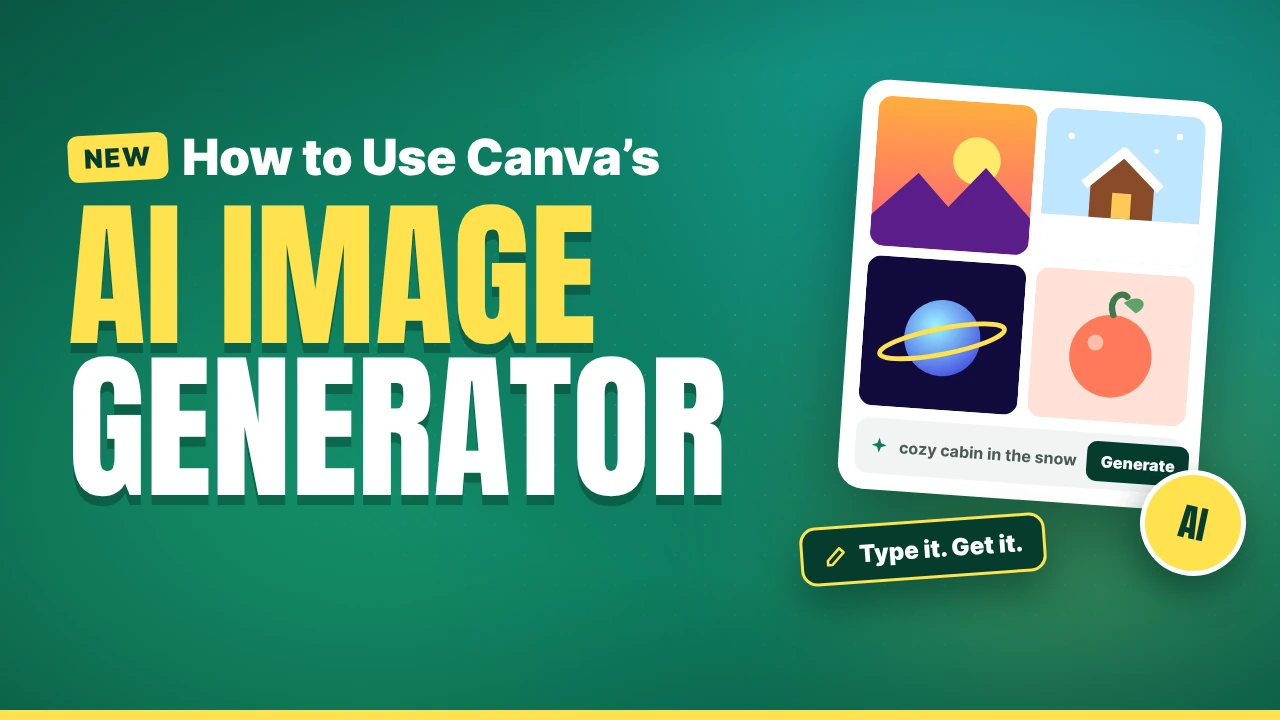
Canva also has a public AI image generator page with a slightly different flow: write a prompt, choose from more than 10 styles such as Photo, Vibrant, 3D Render, Cinematic, Pop Art, Bokeh, Sketch, Vector, and Minimalist, set an aspect ratio, and click Generate AI image. You can browse variations, regenerate, export as PNG, JPG, or PDF, or choose Open in editor to add text, layers, and effects. That page does not say which model it uses, so I cannot say whether it uses Craft.
How to Write Prompts That Work
A good prompt reads like a brief to a designer. Use this structure:
Subject + setting + style + colors + lighting + layout + any text
Examples:
- “A poster for a neighborhood book fair. Warm paper texture, hand-drawn illustration of a stack of books and a sun, soft morning light, headline at the top in bold serif letters reading ‘Book Fair’, date at the bottom.”
- “Square social media post for a coffee shop: overhead photo of a latte on a wooden table, soft natural light, plenty of empty space on the left for text.”
- “Flat vector illustration of a person working at a laptop, pastel colors, simple shapes, white background.”
Tips:
- Say where the empty space should be. If you will add text later in the editor, ask for room for it.
- Keep text short. Canva says Craft handles text well, but short words are easier than long sentences. Always check spelling.
- Change one thing at a time when you regenerate, so you learn what each change does.
- Use the follow-up edit instead of rewriting the whole prompt when you only need a small change.
- Match the aspect ratio to the destination before you generate: story, square post, banner, or slide.
Turning an Image Into a Design
Generating the image is only half the work. Canva’s help page says you can open an image in the editor to add text, layers, and effects. Canva’s announcement says Magic Layers can convert generated images into editable design elements, which helps when a small piece needs fixing. For things like logos or exact brand colors, plan to rebuild those elements in the editor rather than trusting the generator.
For tips on finding other image tools and their real limits, see our comparison of free AI image generators.
Limits: What the Free Plan Allows
Canva’s AI allowance page explains how limits work. According to it:
| Plan | What the page says |
|---|---|
| Free and Pro Lite | Up to 20 uses of Standard or Premium AI tools combined. No Ultra AI tools |
| Pro, Teams, and Nonprofits | Standard AI tools do not use your allowance. The allowance covers up to 200 uses of Premium tools or up to 20 uses of Ultra tools |
| Business | Standard tools are unlimited, subject to fair use. Up to 400 Premium uses or 40 Ultra uses |
The page says all AI tools share the same allowance, and that “Create an image with Canva AI” is a Premium tool. Free accounts reset at 12:00 a.m. UTC on the first of each month, and paid plans reset on your billing date.
There are important gaps:
- The page does not say whether Canva Craft or Dream Lab counts as Standard, Premium, or Ultra, so I cannot tell you how many Craft images a free account can make.
- Dream Lab produces four options per prompt, and the pages do not say whether that counts as one use or four.
- Canva says reference images and Boost resolution use your allowance, but does not say how much.
- Canva’s AI Product Terms say usage limits can change, and that hitting a limit may slow or pause the tools until the next reset. A separate AI top-up add-on exists, but only for Canva Business users, and its page gives no price.
The practical advice: on the free plan, treat your monthly allowance as small, and plan your prompts before you spend it. Check your own account for the exact count.
Rights: Can You Use the Images Commercially?
Canva’s AI Product Terms say you keep ownership of your input and generally own your output, except for output that modifies or incorporates Canva’s licensed content, which is licensed to you rather than owned. Other points from the terms:
- Outputs may not be unique, and other users may receive similar outputs. Your ownership does not extend to other people’s outputs.
- You may use output for any lawful purpose, at your own risk. Canva suggests getting independent advice before using output commercially.
- Canva has not verified output accuracy and gives no warranty.
- You must not mislead anyone into thinking AI-generated content is human-made.
- You must not remove or alter provenance or metadata tags, including C2PA metadata.
The AI image generator page adds that images can be used for personal or commercial projects subject to the terms, and that Canva does not guarantee outputs are cleared for use.
Two practical consequences. First, if you mix generated images with Canva library photos, the library photos stay licensed to you, not owned. Second, if you plan to sell templates or digital products, there are extra rules about which Canva elements you can include. Our guide to creating and selling digital products covers the license points I could confirm, and our guide for Etsy sellers covers marketplace considerations. I am not a lawyer, so read the terms yourself if money is involved.
What Is Still Coming
Canva says faster, lower-cost variants called Craft-fast and Craft-ultrafast are upcoming, along with reference-image and advanced editing capabilities, better fine print and technical drawings, and support in AI assistants through its MCP server, which is marked as coming soon. TechCrunch notes that third-party chatbot support is a plan, not a launch. Developers can already use Craft through Canva’s public API.
Common Mistakes to Avoid
Trusting generated text without proofreading. Canva highlights text rendering, but check every letter.
Spending your allowance on vague prompts. Write a clear brief before you generate.
Forgetting where the empty space goes. If you will add a headline, ask for room.
Assuming free means unlimited. The free plan’s allowance is small and shared across AI tools.
Using generated images as logos. Rebuild logos and brand colors yourself.
Ignoring the terms. Output may not be unique, and Canva gives no clearance guarantee.
Removing metadata. The terms prohibit removing or altering provenance tags such as C2PA.
Frequently Asked Questions
What is Canva Craft? Canva’s first in-house image generation model, built for design work and available through Dream Lab.
Is it free? Canva says Craft is available to all users, and Free accounts have a monthly AI allowance of up to 20 uses of Standard or Premium tools combined. The pages do not say how Craft counts toward that.
Where do I find it? Canva’s help page says to go to the homepage, choose More, then Dream Lab. Canva’s announcement mentions the bottom-left panel.
How many images do I get per prompt? Dream Lab creates four options for each prompt.
Can I use the images commercially? Canva’s terms allow lawful use at your own risk, with no guarantee of clearance. Get professional advice if the stakes are high.
Can I edit the result? Yes. You can describe follow-up edits, use Edit image, or open the image in the editor. Canva says Magic Layers can turn generated images into editable elements.
The Bottom Line
Canva Craft is a sensible move for a design tool: an image model aimed at posters, social posts, and text-heavy layouts, inside the app where you will finish the design. The workflow is simple: write a specific prompt, pick from four options, refine with follow-up edits, boost the resolution, and open the result in the editor. What Canva has not made clear is how far the free plan stretches and how Craft counts against your allowance, so test with a few prompts before you plan a campaign. And treat the commercial-use terms as a starting point rather than a guarantee.